
Android Installation Guide for Unlimited Data

Set Up Guide For Androids

Last updated on August 8, 2025

Before using eSIM

To successfully use eSIM Korea Unlimited Data, a real-name registration is mandatory.
Make sure that you complete the registration before arriving in Korea.

Review the directions,

then click the button to start registration.

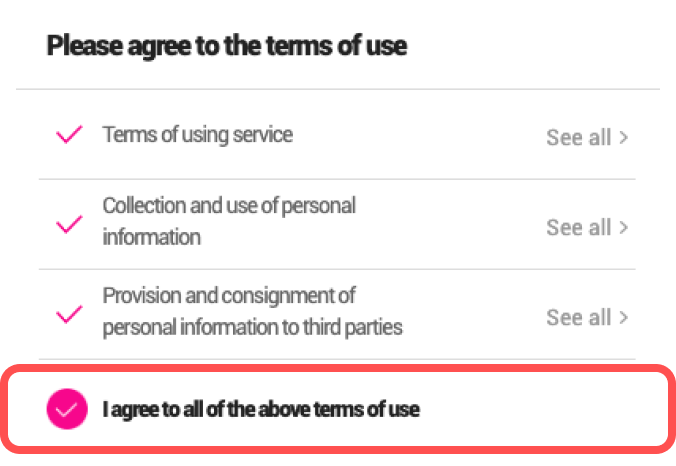
User Agreement
Please check the terms of use and agree to all.
Passport Information 
Enter your passport information and upload photo of passport and click Check Customer Information

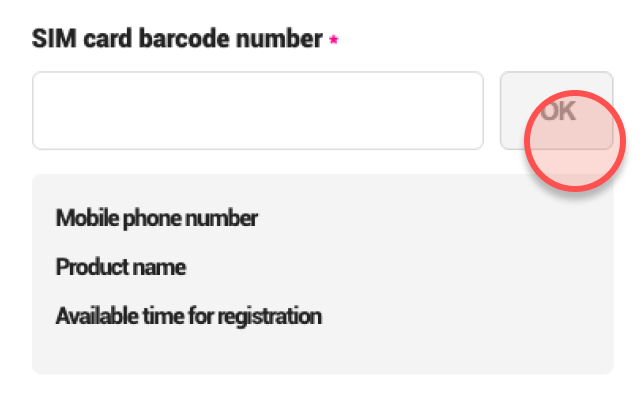
eSIM Information
Put the barcode number of the eSIM and click OK.
Find SIM card barcode number in the email with the QR code.
Start using your eSIM
Click Register at the bottom of the page. If you are already in Korea, you can immediately use data with eSIM.

How to install eSIM

These steps may differ depending on your device and language.

Important Notice

Make sure you have an eSIM compatible and network-unlocked device.
Be connected to a strong WiFi to activate an eSIM successfully.
Be noted that the validity begins once you install the eSIM.
Please do not remove the eSIM without consulting CS Team.

01

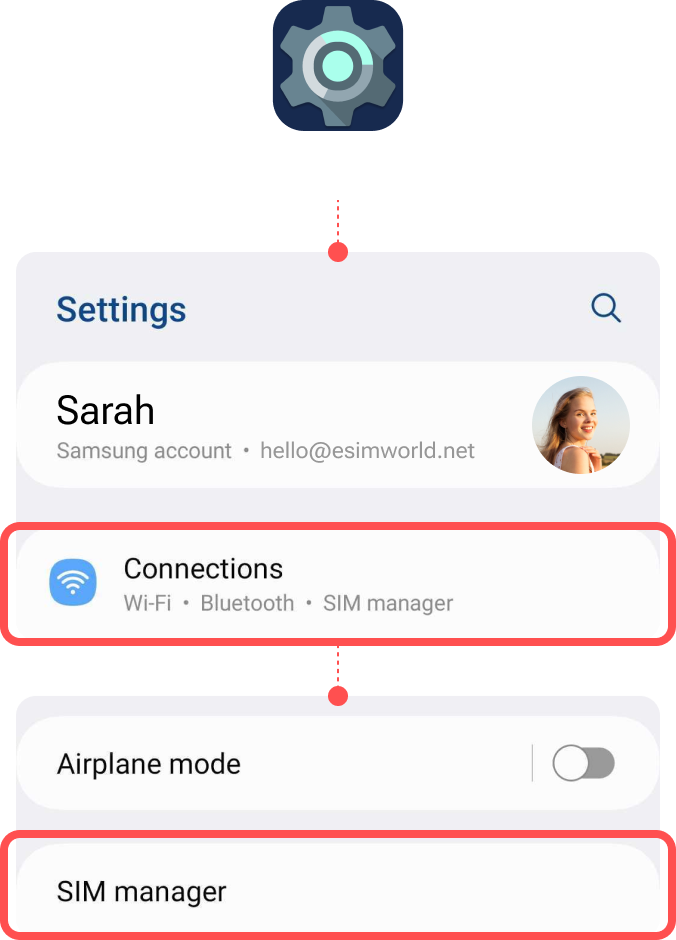
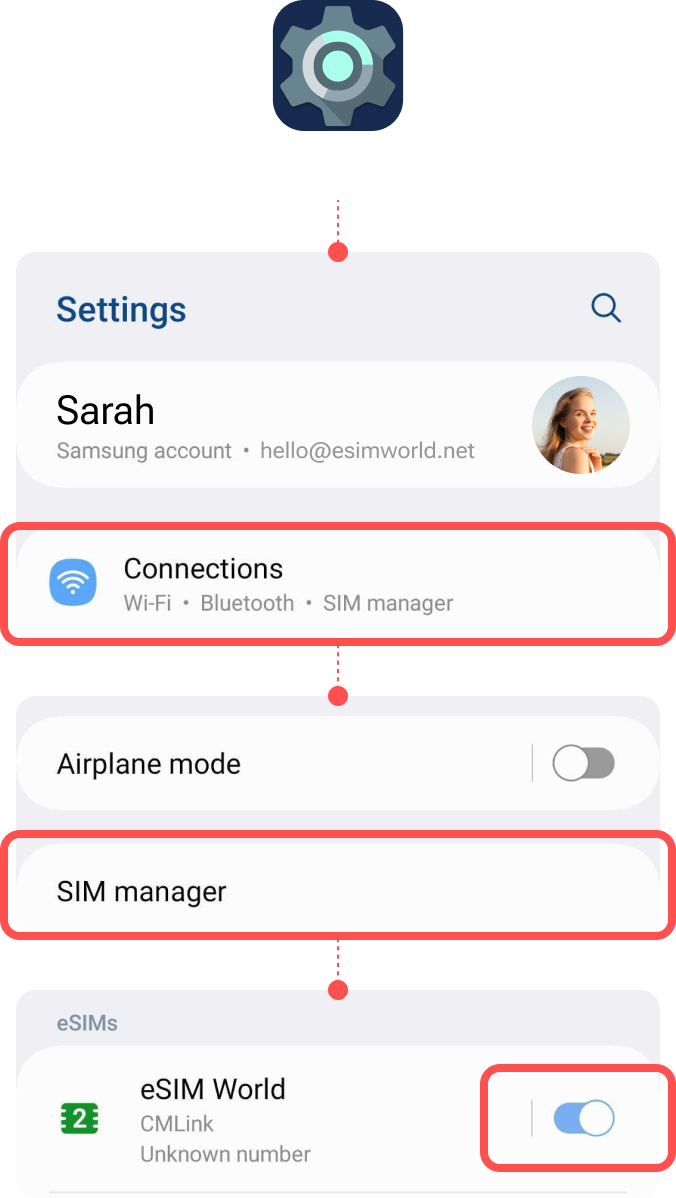
Add eSIM from the device’s Settings.

Go to Settings

Select [Connections]
Tap [SIM manager]

02

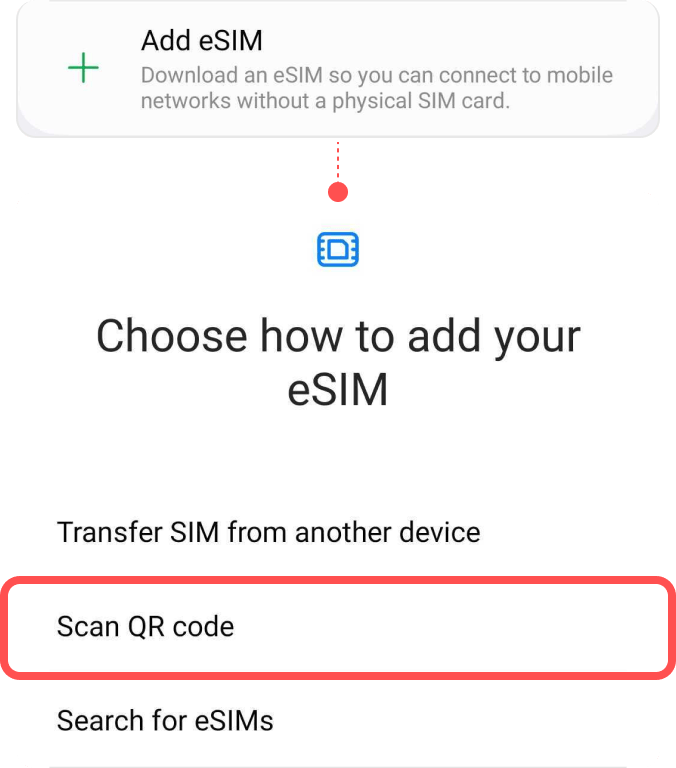
Select [Add eSIM] to install the eSIM.

Select [Add eSIM]

Tap [Scan QR code]

03

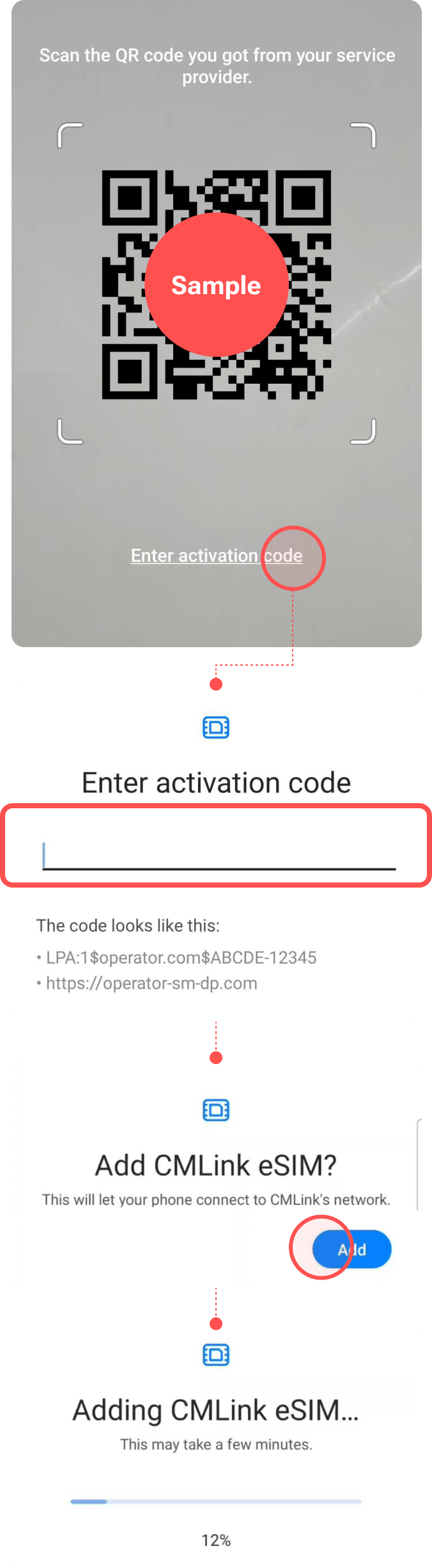
Install eSIM via QR code or manual installation
and wait for completion.

Either scan the QR code or manually put your eSIM details. You can find your eSIM details in the email.
! Be connected to a strong WiFi to activate an eSIM successfully.

04

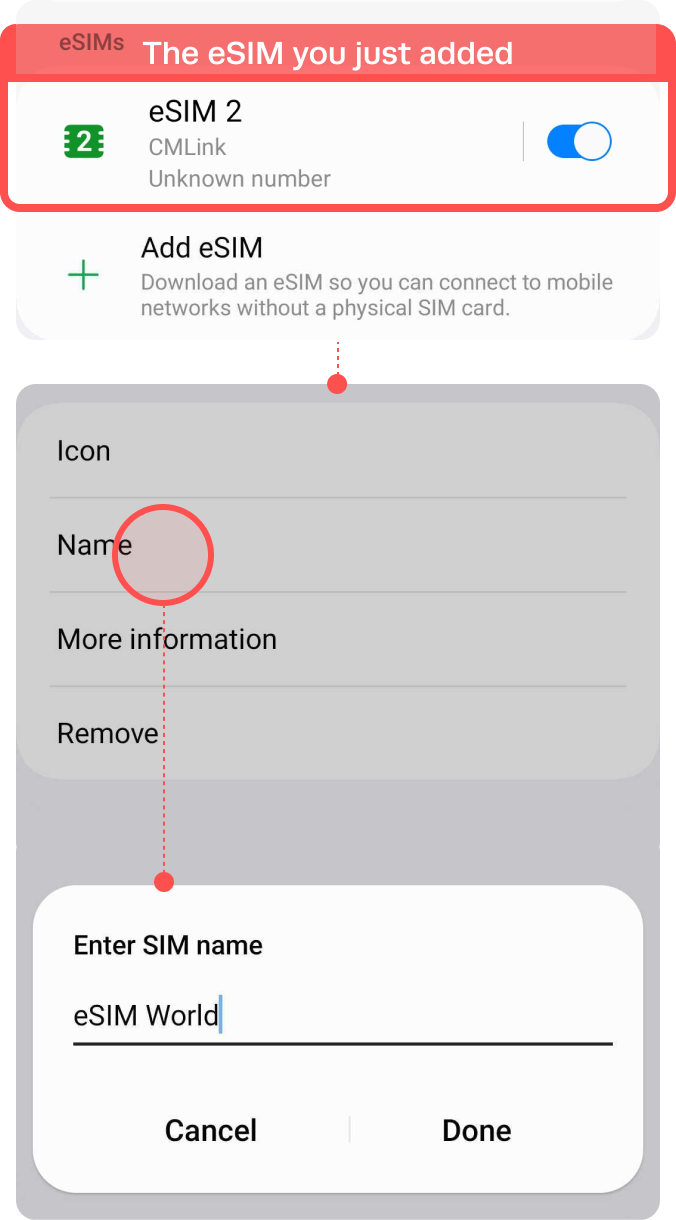
Label your eSIM.​

After the successful installation, you can label it for more convenient management.

Go to Settings

Select [Connections]
Tap [SIM manager]
Choose the eSIM you just added
Tap [Name] and Type on new label of your  own, e.g. {Destination} – eSIM World.

Installation Completed

The installation steps are done!
You are almost ready to use the data.

How to check if your eSIM is activated

You can confirm your eSIM is activated by checking these two things:

  • Signal and network: If activated, your device will show 2 signal bars and the carrier name in the status bar.
  • eSIM settings: In your device settings, you should see an active eSIM profile listed.
How to check
if your eSIM is activated

You can confirm your eSIM is activated by checking these two things:

  • Signal and network: If activated, your device will show 2 signal bars and the carrier name in the status bar.
  • eSIM settings: In your device settings, you should see an active eSIM profile listed.
How to Access Data

These steps may differ depending on your device and language.

01

Turn on the eSIM profile.

Go to Settings

Select [Connections]
Tap [SIM manager]
Toggle on your eSIM

02

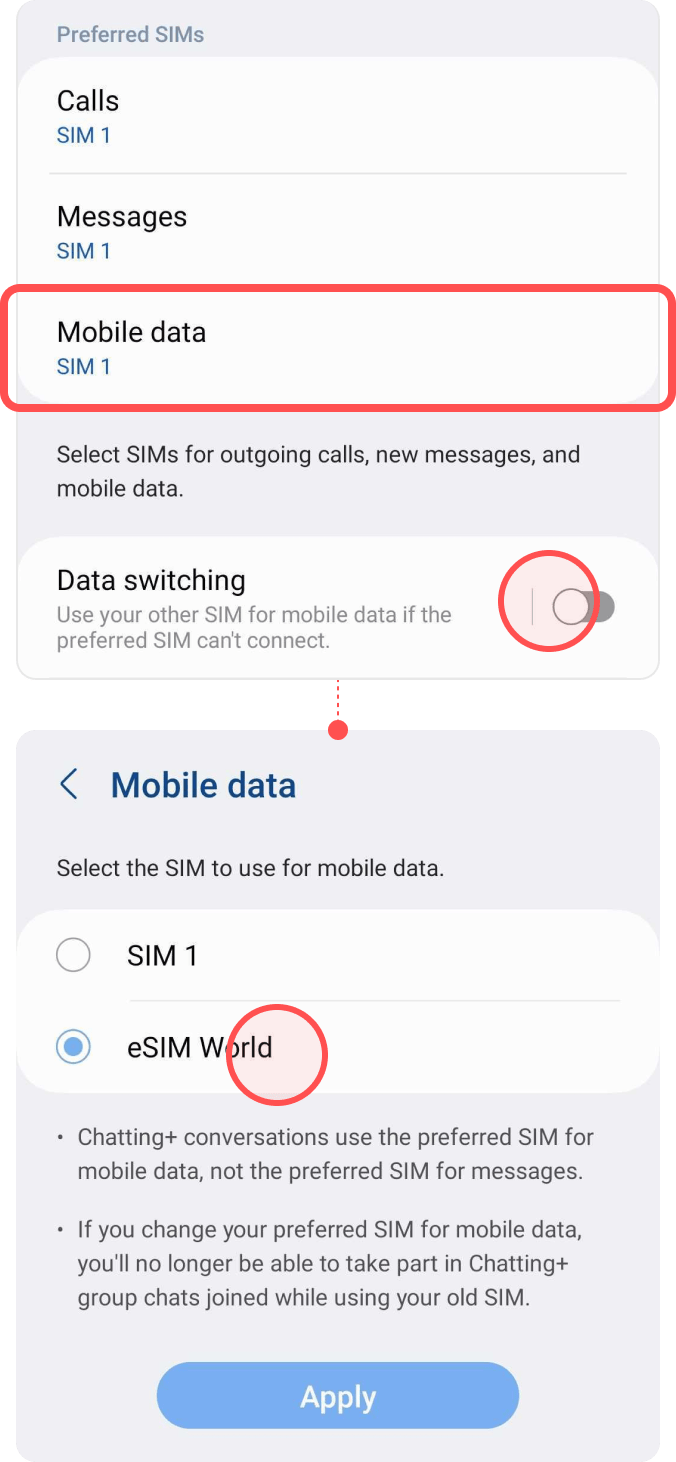
Select your eSIM profile on [Mobile data].

Go to Settings

Select [Connections]
Tap [SIM manager]
Tap [Mobile data]
Select your eSIM profile
Please toggle off ‘Data switching’ to prevent unnecessary roaming charge from your domestic carrier.

How to select local phone number

If you have trouble using the local phone number, and cannot receive any calls or SMS, please follow the steps below.
Important! Please be aware that the provided Korean phone number (012) cannot be used for Identity Verification services.

Select your eSIM profile on [Calls] & [Messages].

Go to Settings

Select [Connections]
Tap [SIM manager]
Tap [Calls]
Select your eSIM profile. 
Tap [Messages]
Select your eSIM profile.

If you still need help,
contact our customer support team.

0
Your Cart is Empty!

It looks like you haven't added any items to your cart yet.

Browse Products